Community @ The Turning Gate
Support community for TTG plugins and products.
NOTICE
The Turning Gate's Community has moved to a new home, at https://discourse.theturninggate.net.
This forum is now closed, and exists here as a read-only archive.
- New user registrations are disabled.
- Users cannot create new topics.
- Users cannot reply to existing topics.
You are not logged in.
- Topics: Active | Unanswered
#101 Re: CE4 Publisher » Error Uploading Rendition » 2015-04-13 15:17:42
I had the same issue with GoDaddy and Publisher. I had also moved from their classic hosting to cPanel. At first, GoDaddy support was unable to identify the issue, other than suggesting that the application was attempting to upload the photos in an unusual manner and potentially causing a DoS error which timed out all of my hosting sites for 60 seconds. When they learned that an Adobe product was causing the issue, they determined that it is something they should investigate further. They walked me through a number of steps to help isolate the problem. One error message displayed (I cannot find the transcript to see exactly what it was) gave them a clue. Within 24 hours I received this reply:
Support Staff Response
Dear Sir/Madam,
Thank you for contacting Hosting Support about your cPanel hosting.
We have resolved this issue. You previously notified us that your application was erroring out when performing bulk uploads. Our admins have found that the application was triggering a mod_sec rule that was blocking the script from completing. We have adjusted that mod_sec rule to allow larger tasks before being triggered. Please let us know if you experience these issues any more going forward.
Please contact us if you have any further issues.
Regards,
Brian W
Hosting Support
I have since been able to use Publisher to upload albums of several hundred photos without incident (knock on wood!!!).
Thought I'd post this so if others are still having the issue, they can refer to the issue noted above.
#102 CE4 Pages » Pages Home Page » 2015-04-13 14:55:14
- hjrw
- Replies: 2
I have a website (photographs-now.com) that had a set of images that displayed automatically when the site opened on the home page. I have added albums to my galleries, but have not touched Pages in a couple of months. The images no longer change. Only the first image appears with a pause icon. Clicking pause brings up a slideshow icon which does nothing but re-display pause. Before I re-upload my Pages to the site, does anyone have any idea what might have happened? This feature has always worked. Then it stopped this week. The same behavior occurs on my phone (Chrome), and in Chrome and Firefox on my Win 7 PC.
As noted, I have made no changes to Pages since February. All of these browsers have been updated in the past couple of weeks, I believe.
Any help would be appreciated.
#103 Re: CE4 Auto Index » Site Broken » 2015-03-18 03:43:31
Thanks! I'll try that.
#104 Re: CE4 Auto Index » Site Broken » 2015-03-17 14:54:53
As I mentioned above, the problem somehow corrected itself. I am not sure what I did to correct it. I ended up editing all of my autoindex and gallery templates to reflect the http://photographs-now.com/ and edited all of the Publisher pages using the new template. I was hoping not to have to do that, but all seems fine now.
All I can think is that the random image issue was corrected when I updated the Pages host name to reflect the photographs-now address. It was confusing, since all of the images that are in the "custom-thumbnails" folder appeared in Publisher Edit, and the correct image was shown as selected (and had a check mark in the list), although random images from the gallery were being selected.
All seems OK now. Sorry for the rant! I was really frustrated with the random images.
Where I have embedded links to other pages on the site within my page copy, I am now using the entire path (http://photographs-now.com/... That is working reliably I think.
On another note, I am placing a copyright notice on all of the photos. I have included a couple of images that are things like National Park maps in my galleries. Is there any way to selectively not place a copyright notice on these images?
Thanks,
-Herschel
#105 Re: CE4 Auto Index » Site Broken » 2015-03-16 15:35:57
I was hoping to just be able to "point" several domain names to the site using the base "caddinfo.com/photo-now" address within TTG, but now I cannot. As an example, I wanted to point a domain to my Route 66 page directly and have the site continue to work, but that does not seem to be possible. It is like I will need to create duplicate websites on the host to support that. Am I missing something?
My frustrating issue right now is that all of the work I did creating 200x200 pixel images for the autoindex is wasted, since it will no longer select the image that is listed in Publisher for the autoindex.
#106 CE4 Auto Index » Site Broken » 2015-03-16 15:23:16
- hjrw
- Replies: 5
I am at wits end... I have been running my site in test mode with a domain name that I listed in Pages.
I set up an "Add-On Domain" (GoDaddy, cPanel) www.photographs-now.com that "points" to caddinfo.com/photo-now.
Now the images that appear in my autoindices are random, even though in Publisher they are shown as referencing the correct photos. I am not sure what else is broken, but in general, my entire site no longer functions correctly. Under CE3, I was able to assign several domains to the site with no issues. I was planning on assigning several other domains to the site as well, but now have no idea what happened so I cannot even begin to repair it.
Any assistance would be appreciated. I was ready to go live, that's why I assigned my real domain name. But now it appears that I must basically start over from scratch and rebuild every page. (Although when it comes to autoindex images, I can't even do that, since it appears to have the correct image assigned.
#107 Re: CE4 Stage » Panoramas in galleries and stage » 2015-02-28 18:38:05
Matt
Thanks for the info. I have it now. I just need to automate it with Publisher (how do I do that?). These are the steps that I took. If there is a more streamlined method, please let me know.
To create panoramas in Stage
(1) If width of photo is greater than 15000, export image resizing it to 15000 width
(2) If width of photo is less than 15000, export the image at it's current size
(3) Note the height of the photo
(4) Create a virtual copy of the photo
(5) Crop the virtual copy in Develop to 16:9 aspect ratio (this photo is the placeholder)
(6) Export the cropped photo and resize it to the height noted in (3) above
(7) Delete the virtual copy from the Collection
(8) Import the pairs of photos and place in a new Collection
(9) Display the new Collection
(10) Assure that the order of the photos is "placeholder image" followed by "panoramic image"
(11) In the Web module open the Stage Template that was previously created for the panoramas
(12) Export the Stage Template
(13) FTP the Stage Template to the server
Thanks again
#108 Re: CE4 Stage » Panoramas in galleries and stage » 2015-02-28 16:23:26
If I have several panos on the page, what do I set the height to? Or do I need to somehow use stage as an autoindex and have several stage instances... one for each pano?
#109 Re: CE4 Stage » Panoramas in galleries and stage » 2015-02-28 16:07:52
I cropped the images in Develop, and updated the Stage template, exported it and FTP'd it to the server. As seen here, the images were both 3462 height. When I update the template and export and upload, they get resized (in this case to 1024x576 and 1022x144). Any ideas?

#110 Re: CE4 Stage » Panoramas in galleries and stage » 2015-02-28 12:33:08
I set up an instance of stage for the panorama. I created a virtual copy and cropped the panorama to 16:9. I have it before the full panorama in the filmstrip. The displayed image is stretched vertically (it is the cropped image). On the web, the image is similarly distorted and does not move... only the indicator moves.
I don't see any adjustment for image size on the stage "page." What have I missed?
Here's what I have... www.rt-66.com/stage-rt66-ca
#111 CE4 Stage » Panoramas in galleries and stage » 2015-02-28 05:34:21
- hjrw
- Replies: 12
I have several large panoramas as part of my Albums in galleries. On display they are scaled to fit the screen. Is there a way to provide a button or menu item on the footer or header of the page where the full size image is displayed (upon clicking on an image in the grid) to enable Stage to display a scroll-able full sized panorama?
#112 Re: CE4 Publisher » Combining several collections into one Album » 2015-02-27 17:08:43
Thanks for the link... I tried the following:
(1) Dragged 1 collection into the Album, colored it purple. This time, as it often does, the 1st photo belongs in the middle of the collection.
(2) Corrected the order (moved the one photo).
(3) Selected the last photo in the Album (not sure if this was necessary, but it worked).
(4) Colored the next Collection red.
(5) Dragged it to the Album. Again, the first photo of the second collection was misplaced, but the first Collection remained sorted and the second collection remained sorted (except for the first photo).
(6) Colored the Album purple.
(7) Repeated for each Collection. Each time the first photo was incorrectly placed, but all others were sorted correctly.
I colored the Collections so that I could identify the added Collection. Seemed to work!
#113 Re: CE4 Publisher » Combining several collections into one Album » 2015-02-27 13:22:19
Thanks Rod...
I was afraid of that. I just made a hard copy of the Lightroom grid images for each collection and will now copy them into the Albums. Real pain! I think that I'll color rate each Collection, say red, before I copy it to the Album and then maybe I will have an easier time rearranging the images... then I'll remove the color and copy the next Collection.
#114 CE4 Publisher » Combining several collections into one Album » 2015-02-27 09:29:01
- hjrw
- Replies: 4
I have 10 Collections that I would like to combine into a single Album for use in Publisher. This is probably a Photoshop issue, but I have been unable to keep the order of the multiple Collections if I drag the photos from the each Collection into a single Album. Is there a way to accomplish this?
I had about 1000 images taken across Route 66 in California (from several shoots) and combined different regions into individual collections so that I could tackle the editing. Now I have multiple Collections that I would like to combine, maintaining the order. I tried 2 of the Collections (all were set to Custom Order) and Photoshop randomized the photos.
If there is a way to Publish these into a single Album, I'd appreciate any guidance.
#115 Re: CE4 Stage » Embed Video Options » 2015-02-12 06:15:02
I ended up importing the video into my GoPro editor and exporting it at 2x speed. So now when it displays, it runs at 2x even though it is marked as "normal" speed. Here is the result: http://caddinfo.com/photo-now/stage-porsche/.
I currently have only 1 video on my site, and am editing the CE4 Stage template in Lightroom each time I make a change and then uploading the revised stage into a "stage" folder on my site. Have I missed where this can be automated using Publisher? I currently link to stage in the text of my Album description and have a link on the stage page to go back to the linking page. This is my first time using stage, as I did not have it implemented in CE3.
Also, looking at the above link, is there a way to enhance the appearance of the video on the page? I don't see many options that seem to have any effect in the Lightroom Stage editing panels.
#116 CE4 Stage » Embed Video Options » 2015-02-11 17:36:35
- hjrw
- Replies: 3
Does anyone know if it is possible to change the default frame rate on a video embedded from Google Drive. My embed code is
<iframe src="https://docs.google.com/file/d/0B9XvopVdGJHMcGxNaHRCUnpVanM/preview" width="640" height="480"></iframe>
When played in Stage, the video window has dropdown options for speed and quality. Normal is default, but I would like to have it default to 2.0x (one of the options given). I searched for a solution and found playbackRate="2.0" but it doesn't seem to have any effect. I couldn't find any examples to assure that I had the syntax correct. Also, it defaults to 360p rather than 720p.
Any ideas?
#117 Re: CE4 Auto Index » Masonry Layout for Auto Index » 2015-02-11 14:58:33
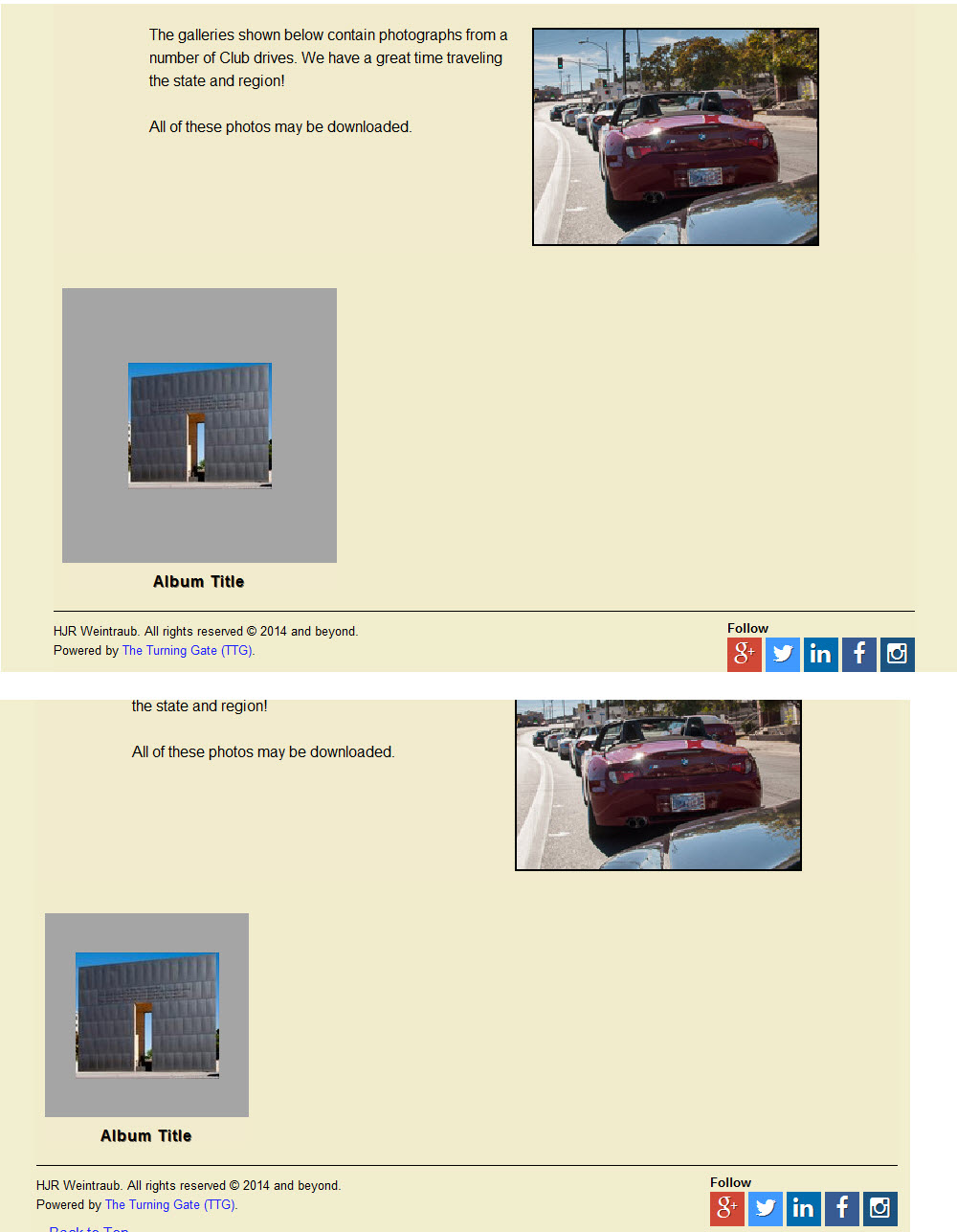
I have tried a bunch of settings under Appearance > the AutoIndex: Border to try to adjust the size of my iconic images. At the moment, I have set the aspect ratio to 1:1 so that I can display vertical as well as "normal" images. I have tried 3 and 4 columns. My images are small in 4 column mode and tiny in 3 column mode if I set a background color. I cropped an image to about 3000x2800 px as a trial, but it does not fill the frame. What determines the size of the AutoIndex image? A couple of screen shots are below (top is 3 column, bottom in 4 column)
#118 Re: CE4 Publisher » Publisher and post-processing plug-ins » 2015-02-10 07:11:50
Thank you! That did it. I had it set from upgrading CE3 to CE4... Phew! Didn't want to reupload Albums since I keep getting 12152 errors from GoDaddy every 20 photos or so. I increased my data limits and sizes in php.ini to no effect. I presume they see my uploads as DoS attaacks, since the entire hosting is inactivated for about a minute...
#119 Re: CE4 Publisher » Publisher and post-processing plug-ins » 2015-02-10 06:50:53
Likewise, I have used Lightroom's native Develop functionality to enhance a photo in an Album. In lightroom, the photo shows the modification. I can find no way to replace the modified photo on the server. I mark it for republish, Publisher acts like it is uploading it, but the image is not updated on the server.
This will cause issues for several Albums that I have uploaded temporarily in unedited form, as I had planned to use Develop and create the final renditions. One thing that I tried is to rename the photo in question by adding an "x" to the end of the file name on the server (in photo, thumbnail, and mobile_thumbnail folders). The correctly named photo is not uploaded by Publisher. The thumbnail is still displayed on the webpage (even after clearing cache), but if I try to see it full size, nothing happens.
Short of starting over and deleting everything and starting over with a new Album, what is the solution?
EDIT: I created a new album with 1 photo in it... the edited photo from the one I am having issues with and the correct rendition was uploaded....
#120 Re: CE4 Cart » No products available for purchase » 2015-02-05 05:33:13
Hi Rod
The no_download name referred to no "free" downloads. I am the photographer for several car clubs and I allow those photos to be directly downloaded from the galleries. I may change that once I get everything working to somehow allow them to be "purchased" as digital downloads at no cost, so they may be accumulated in the cart. Any ideas on how to do that?
Since I don't have too many albums uploaded yet, I may do some renaming and reload the photos so that they have uniform names. (I tried with initials-yymmdd-hhmm-filename_sequence_number but I have a number of photos that I have appended "-edit" or "-v2" etc to the name and the auto-naming algorithm in Lightroom can't find the sequantial number since it is not at the end of the name, so I have had to manually edit the names.)
Just out of curiosity, is there a way to create virtual copies with the new names so I don't have multiple copies of the images on disk?
#121 Re: CE4 Cart » No products available for purchase » 2015-02-04 16:26:23
I entered "Standard Prints" (my name for physical prints) in the Publisher edit box (Cart Pricing Profile) under Integration) for the Albums. It now works again! It appears that I managed to define two pricing schemes. One is "Standard Prints" for physical prints that are shipped, one is "Prints" that includes "Standard Prints" and "Digital Download." If I enter "Prints" rather than "Standard Prints" I get the same "Standard Prints" dialog when I select an image to purchase. I do not see "Digital Download" as a choice. If I enter "Digital Download" I get no products available. Is this where I need to set up "Mixed Pricing" for the template?
Also, what do i need to do to have "Digital Downloads" function? I understand that I need a copy of the images with the same names in a "photos-for-download" folder at the same "level" as the "photos" folder for that gallery. Can you provide some links for other settings that need to be made?
Thanks again!
#122 Re: CE4 Cart » No products available for purchase » 2015-02-04 14:47:27
I am totally stuck. I have no idea what I have or what I need to do to make this work again. It worked for an hour. Many of the selections are not documented, and there are far too many to try every combination. I have tried both with digital downloads and without. i think that I returned everything to where it was when it was working (same templates, settings, galleries, etc.) but no luck. I am working in the blind here. I've spent the past 8 hours trying things to no avail. Any assistance would be appreciated.
One example of documentation that I can't find is what is mixed pricing? I don't understand how it can work, I change a template to try digital downloads, it no longer works, so I restate the original template that works, and it still doesn't work.
I seem to recall that there were checkboxes in the ttg-be Cart Admin to turn on and off pricing schemes. I don't see them anymore.
There must be a better way.
#123 Re: CE4 Cart » No products available for purchase » 2015-02-04 07:57:32
I am stuck again. I tried to add downloadable files to my store. I created a new template with this enabled. I turned on Digital Downloads in the Cart Admin. I get the no products error. I turned off digital downloads and updated the gallery to the old template that worked earlier today. No luck. No products again.
This cart admin / template cart integration seems very unstable. Once it quits working it takes me 12 hours to get it working again. I can no longer make any changes to my site except add galleries, since it seems that any change that I make breaks it permanently.
HELP!!!
#124 Re: CE4 Cart » No products available for purchase » 2015-02-04 06:11:18
I have them listed in Product Attributes as 8x10 (top), 11x14 (middle), and 16x20 (bottom). I tried inserting a space before the 8 but it removed it...
#125 Re: CE4 Cart » No products available for purchase » 2015-02-04 03:58:13
Thanks! All seems to be working. I placed an order in the PayPal sandbox and got my order confirmation... I think I fixed the pricing. Is there any way to reorder the items so the 8x10 comes first without making it 08x10?
So I've probably been spinning my wheels trying to get it working when it was the browser cache messing me up! Now I need to get the rest of my galleries uploaded and turn off the sandbox in PayPal.
Any design change ideas for the site? My CE3 site is www.photographs-now.com. As soon as I get everything running I'll be pointing that domain to this site (rt-66.com.
Again, many thanks!